Documentation
Customer detail
Everything about one Customer in one place — Plan, balances, usage, Invoices, Payments, Members and settings.
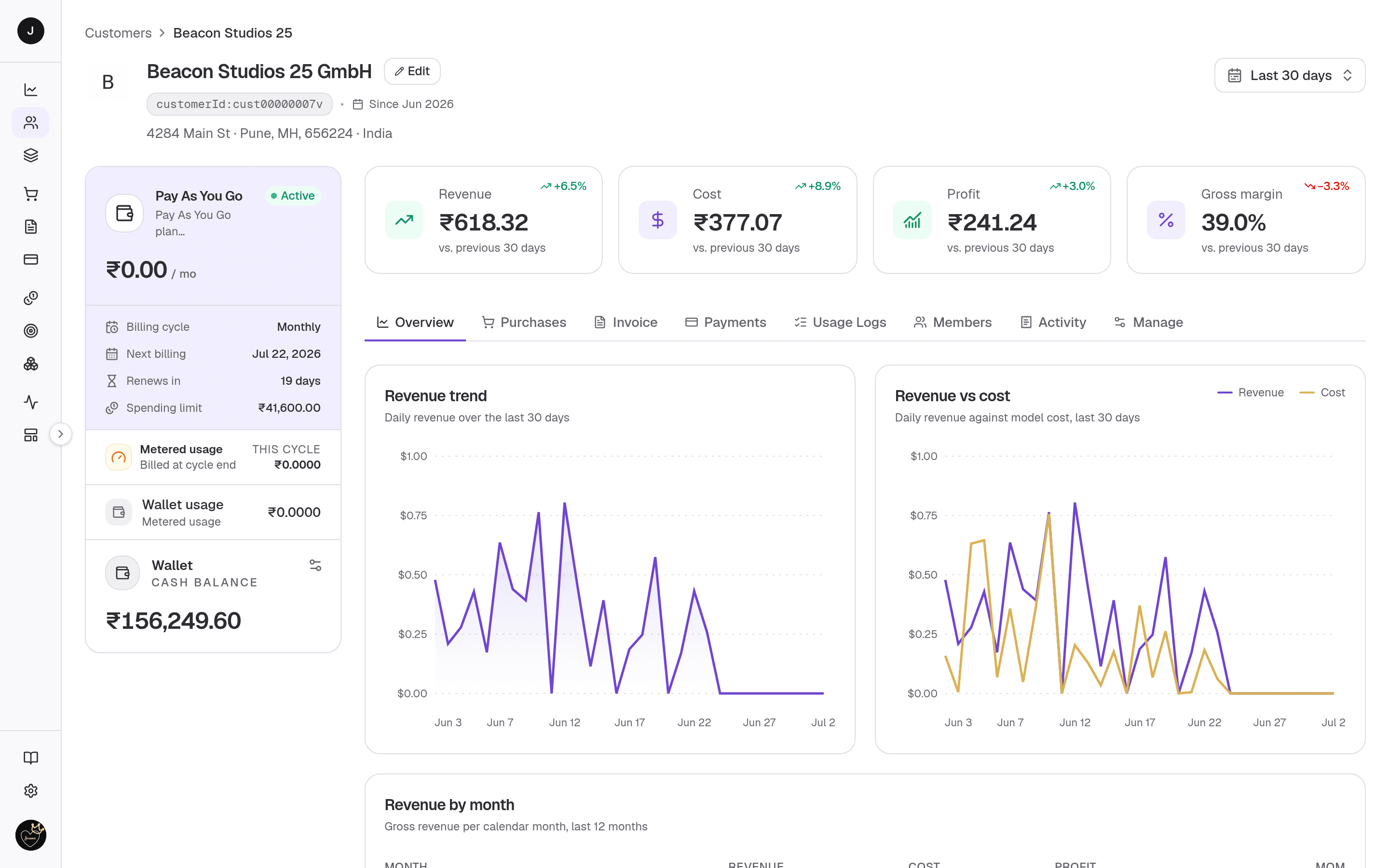
The Customer detail page is the full record for a single company: an editable identity header, a Plan-and-balances sidebar, range-aware money metrics, and a row of tabs covering Purchases, Invoices, Payments, usage, Members, activity and settings. Most tabs load their own data the first time you open them, so the page opens fast and fills in as you explore.
What you can do here
- Track a Customer's revenue, cost, profit and gross margin over a time window you choose.
- Review the active Plan, any tracked charges accruing this cycle, and every balance the Customer holds.
- Add or reduce a balance and read its transaction history (owner or admin only).
- Browse the Customer's Purchases, Invoices (with PDF download), Payments and per-request usage logs.
- Manage tracked Members — add, edit or remove them.
- Follow an audit timeline of everything that has happened to the Customer.
- Edit the profile, billing details and display currency, set per-customer credit-rule overrides and a low-balance alert, or delete the Customer (owner or admin only).
Header and sidebar
These are always visible, above and beside the tabs.
Identity header. A breadcrumb back to Customers, the company logo, the legal
name (falling back to the display name), a copyable customerId:… badge (plus
a copyable External ID badge when the Customer has one — see
External ID), and
the "Since" join date. Owners and admins also get:
- An Edit button that opens the same profile dialog used to add a Customer.
- A logo that doubles as an uploader — click it to pick an image (500 KB or smaller).
- A time-range filter pinned to the right that drives the money metrics and the Overview tab.
Plan & balances sidebar. A single bordered column with three stacked sections:
- Plan — pricing model, cost per cycle, billing cadence and the next billing / renewal date (or start date when the Plan is scheduled), plus a spending limit for pay-as-you-go Plans. Shows No active plan until a Purchase attaches one.
- Metered usage — for Plans with arrear (billed-at-cycle-end) components, each component's per-unit pricing and the amount accrued in the current open cycle. Hidden for prepaid-only Customers.
- Balances — a card per balance: the Wallet (cash balance, on every Plan), the Reserved Wallet when your workspace has it on (see Reserved Wallet), and any Credit, Outcome and Unit allowances. Each shows the remaining amount and a usage meter; a gear icon (owner/admin) opens a drawer to Add or Reduce that balance and view its transaction history.
Above the tabs sit four range-dependent stat cards — Revenue, Cost, Profit and Gross margin — that recompute whenever you change the time range.
Tabs
Overview
The Customer's revenue view for the selected range: a revenue-trend chart, a revenue-vs-cost chart, and a revenue-by-month table for the last 12 months. Revenue is what you've billed, not counting tax; cost is the underlying model cost.
Purchases
Every Plan and Credit Purchase recorded for this Customer, in a paginated table. Empty until the Customer has made a Purchase.
Invoice
Invoices raised for this Customer. Each row offers a PDF download. Empty until an Invoice has been raised.
Payments
Payments against this Customer's Invoices, including Payments taken through the Customer portal, with per-row actions.
Usage Logs
A per-request log of tracked usage. Columns cover the timestamp, the Member, request type, model, token counts (input / output / cache), the Credit and Outcome consumed, cost (provider vs. customer) and status. Once the Customer's Members start consuming, every request shows up here.
Members
The people tracked against this Customer. Search by name or email, and — as an owner or admin — add a member (full name required, email optional; no email is sent), edit one, or remove one. Removing a Member keeps their historical activity intact; only the active membership goes away.
Activity
An audit timeline of customer-level changes, grouped by day: the Customer being created, Members added or removed, Plan and Credit Purchases, and manual Wallet, Credit or Outcome adjustments — with who made each one. Per-request usage lives in the Usage Logs tab, not here.
Manage
Credit rule overrides and the low-balance alert for the Customer (owners and admins only). Profile, address and currency are edited from the Edit button in the page header.
- Credit rules — per-customer overrides for the Credit rules this Customer inherits: disable a rule for them or replace its Credit amount.
- Wallet — set a Low balance alert (USD). When this Customer's Wallet
drops to or below it, a
wallet.balance.dropwebhook is triggered. It can also be set with the API.
Reserved Wallet
The Reserved Wallet is a second pot of money that sits behind a Customer's ordinary Wallet — a safety net for when the Wallet runs dry.
Turning it on. It is off by default. An owner switches it on for the whole workspace in Settings → Organisation → Billing → "Enable Reserved balance in wallet". Once it is on, every Customer shows a Reserved Wallet balance, whether or not their Plan has a Wallet.
How a charge uses it. When a wallet-funded Arrear charge comes in:
- It takes money from the Wallet first.
- If the Wallet can't cover it all, the rest comes from the Reserved Wallet, down to 0.
- If there's still some left after that, it goes back on the Wallet, which then reads negative.
For example: the Wallet has $10, the Reserved Wallet has $50, and a $70 charge arrives. The Wallet pays $10, the Reserved Wallet pays $50, and the last $10 leaves the Wallet at −$10.
What never touches it. The Reserved Wallet itself never goes negative. A manual Add or Reduce on the ordinary Wallet only ever moves the Wallet — it never dips into the Reserved Wallet. Reducing the Reserved Wallet by more than it holds is refused, not capped.
Using it over the API. Send pool: "reserved" to
Manage a customer's wallet balance
to top up or reduce it; the remaining you get back is then the Reserved
balance. Read it back as wallet.reservedBalance on
Get a customer's balances
(left out while the feature is off), or as reservedBalanceUsd on the wallet
history (null while the feature is off), where each entry's pool (main or
reserved) says which balance it moved.
curl -X POST https://payments.clocknext.com/api/v1/customers/cus_abc123/wallet/adjust \
  -H "Authorization: Bearer $CLOCKNEXT_API_KEY" \
  -H "Content-Type: application/json" \
  -d '{ "delta": 500, "pool": "reserved", "notes": "Reserved balance for Q4" }'
const { remaining } = await cnk.customers.adjustWallet("cus_abc123", {
delta: 500,
pool: "reserved",
notes: "Reserved balance for Q4",
});
const { wallet } = await cnk.customers.balances("cus_abc123");
wallet.reservedBalance; // number | undefined — undefined while the feature is off
const { reservedBalanceUsd, transactions } = await cnk.customers.wallet("cus_abc123");
transactions[0]?.pool; // "main" | "reserved"Related
- Customers — the list this page opens from.
- API: Get a Customer · Create a Customer · List Customers
- API: Customer balances · Customer Plan
- Customer members API — manage a Customer's Members.
- Customer balances API