Documentation
Invoices
Review the Invoices raised from Purchases, record payment, share a payment link, or void an Invoice.
Invoices are raised automatically when a Purchase
reaches its billing date. This page lists every Invoice in the workspace and
lets owners and admins settle open ones — recording a Payment applies the
Plan's Wallet, Credit and Outcome grants to the Customer.
What you can do here
- View or download an Invoice PDF for any Invoice.
- Record payment on an open Invoice (owners and admins).
- Get a payment link to send the Customer.
- Void an open Invoice.
- Open an invoice for its preview and payment status.
Invoices are generated by billing — you don't create them by hand here.
On this page
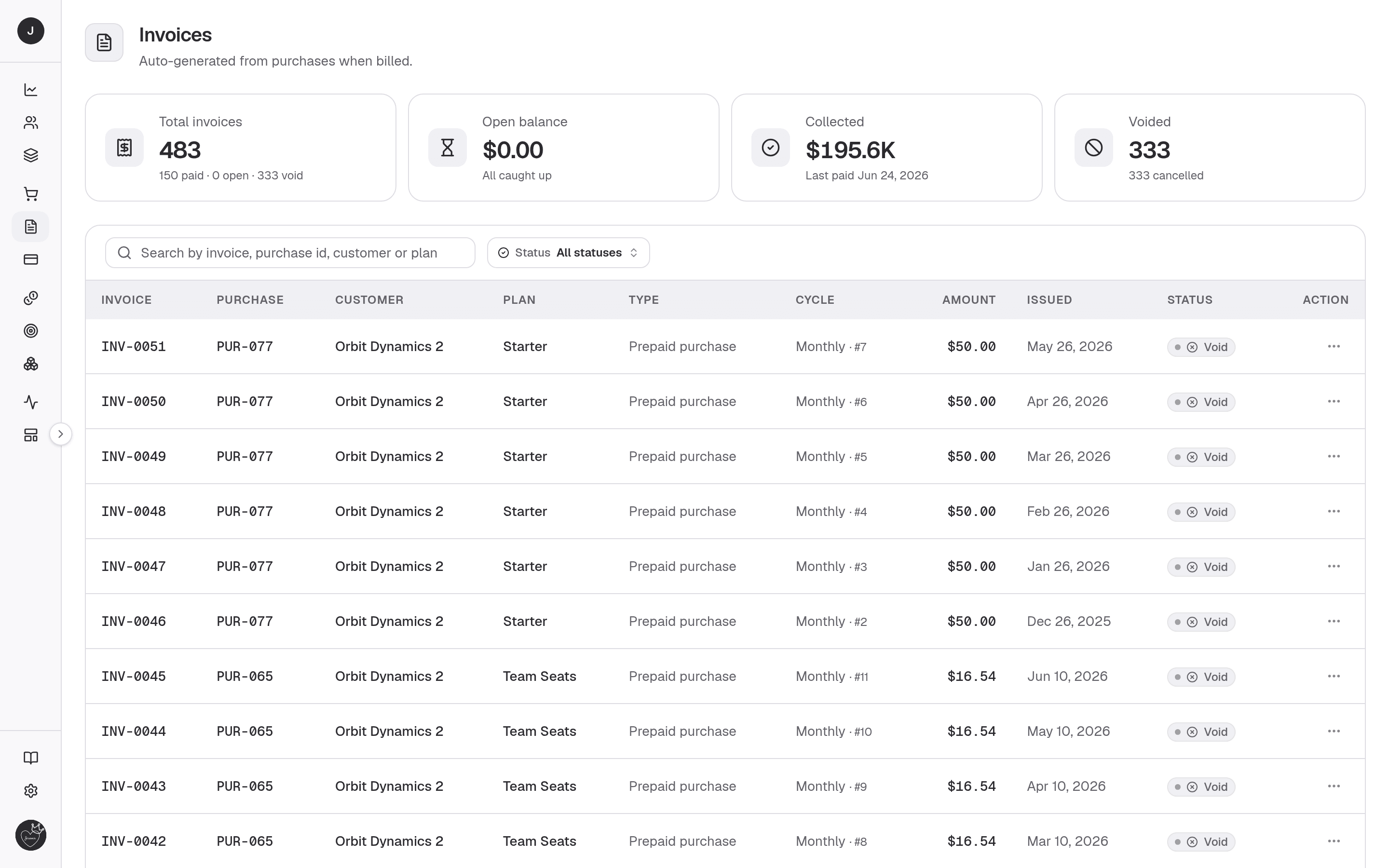
Four stat cards head the page:
| Card | What it shows |
|---|---|
| Total invoices | Count across the workspace (paid / open / void). |
| Open balance | Amount still awaiting payment. |
| Collected | Total settled, with the last payment date — tax included, so it can be higher than revenue. |
| Voided | Count of cancelled Invoices. |
Below them, a searchable, paginated table. Search matches Invoice, Purchase id, Customer or Plan; a Status filter (Open / Paid / Void / Auto closed) narrows the rows.
| Column | Description |
|---|---|
| Invoice | The Invoice number (links to the detail view). |
| Purchase | The Purchase that raised it. |
| Customer | The billed Customer. |
| Plan | The Plan being billed. |
| Type | Prepaid Purchase, Postpaid Purchase, or Manual. |
| Cycle | Billing cadence and cycle number. |
| Amount | The invoiced amount, tax included. |
| Issued | When the Invoice was issued. |
| Status | Open, Paid, Void or Auto closed. |
The per-row ⋮ menu offers View and Download on every row, plus Record Payment, Get Payment Link and Void on open Invoices for managers.
Detail view
Opening an Invoice (/invoices/{id}) shows the full document and its payment
state.
- Header — the Invoice number, a subtitle reading "Plan plan for Customer" (both linked), a billing-cycle chip, the issued date and the status. View and Download PDF buttons sit in the header.
- Stat cards — Amount (with cycle number), Status (with the paid or voided date), Issued and Paid on (with who paid).
- Invoice preview — a rendered copy of the Invoice document.
- Taxes on the Invoice — when tax applies, the totals read Subtotal, one row per tax and Total due. An exclusive tax is added on top ("GST (18%)"); an inclusive tax is already inside the price and reads "Includes VAT (15%)", so it doesn't change the total. The PDF shows the same rows. Each Invoice keeps a copy of the taxes it was issued with, so editing or archiving a tax in Settings → Taxes never changes an Invoice that already exists. An untaxed Invoice looks exactly as before.
- Payment panel — keyed to status:
- Open — the amount due, a Record payment button and a Copy payment link action. Recording payment opens a modal to choose the method (Cash, Bank Transfer, UPI and other rails, filtered to the Customer's country), plus an optional reference and note. The Invoice is marked paid immediately and the Plan's grants are applied.
- Paid — a receipt showing the Payment number, method, reference and payer, with View / Download receipt.
- Void — the voided amount and the reason it was cancelled.
- Auto closed — a recurring Invoice of an Organisation with Auto close invoices on recurring on (Settings → Organisation → Billing). It was closed as soon as it was issued: the Plan's grants were applied as if it were paid, but no payment is collected, it can't be paid or voided, and it isn't counted as revenue.
Voiding an Invoice
Voiding cancels the Invoice and marks the linked Purchase as cancelled. The Plan's effects are not applied to the Customer.
Related
- Purchases — what Invoices are billed from.
- Payments — the settled-invoice history.
- Customers — who the Invoice is billed to.
- Invoices API — read Invoices over the API.