Documentation
Team Members
Invite teammates, manage their roles, and handle pending invitations for your workspace.
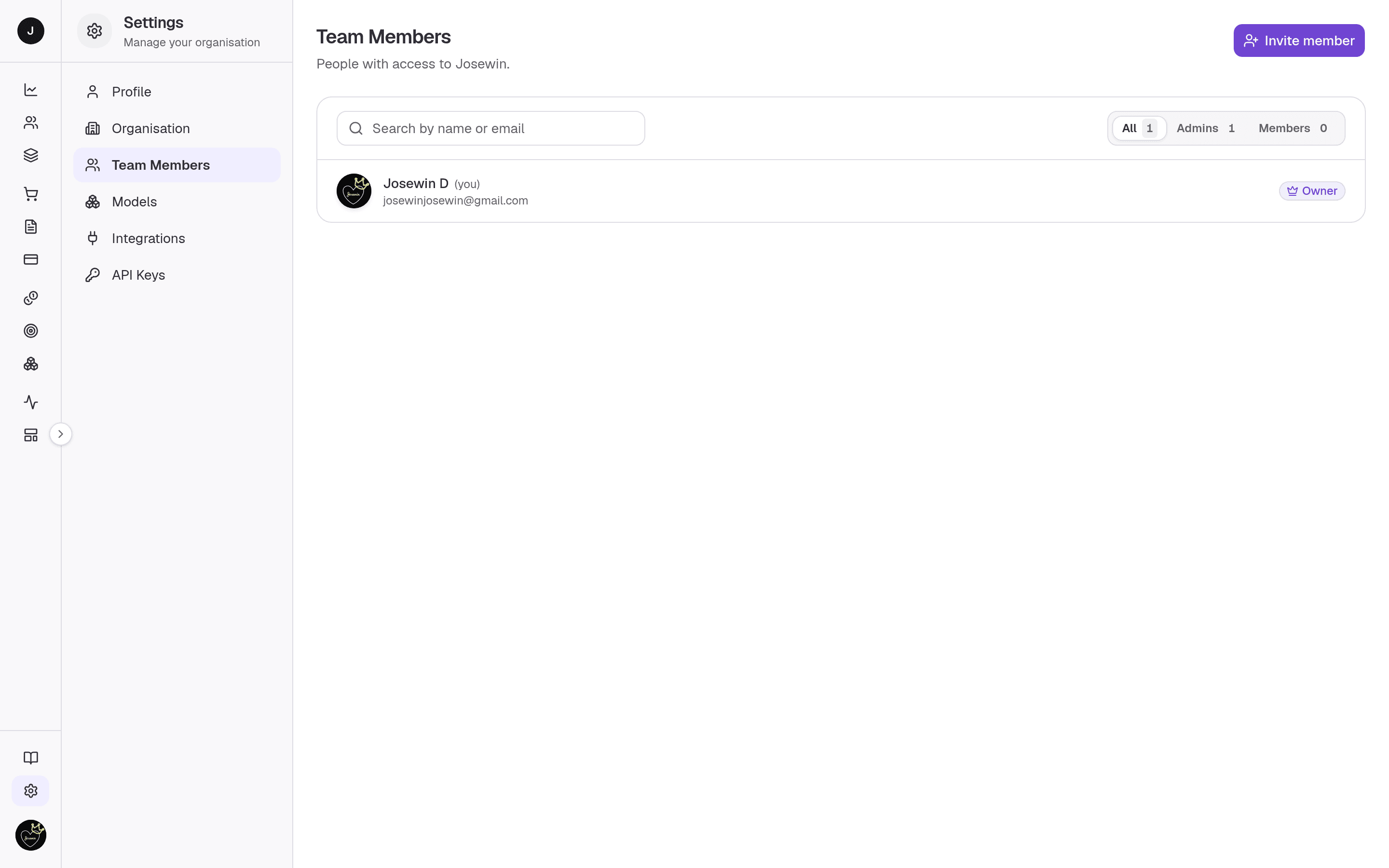
Team Members is the people directory for your active workspace — everyone with
access, their role, and any invitations still waiting to be accepted. Owners and
admins use it to invite teammates, promote or demote them, and remove access.
The list refreshes itself every few seconds, so a freshly accepted invitation
turns into a Member without a manual reload.
What you can do here
- Invite a new teammate by email and assign them a role.
- Search Members by name or email, and filter by role.
- Promote a member to admin, or demote an admin back to member.
- Remove a Member from the workspace.
- Resend or revoke a pending invitation.
Owner or admin only
Inviting, role changes, removals, and invitation controls are available to owners and admins. Members see the directory read-only.
On this page
The whole thing is one unified directory card: current Members first, with pending invitations as a quiet group at the foot.
Toolbar
- Search — matches Members by name or email, and invitations by email.
- Role tabs — All, Admins, Members, each with a live count. The tabs filter Members only.
Members list
Each row shows an avatar, the person's name (with a (you) tag on your own row), their email, and a role badge:
| Role | Meaning |
|---|---|
| Owner | Full control of the workspace; cannot be demoted or removed here. |
| Admin | Can manage the org, models, keys, and invite/manage members. |
| Member | Standard access. |
The row's action menu (⋯) shows only the actions you're allowed to take on that person, so it's hidden entirely when there's nothing you can do.
Pending invitations
A footer group lists everyone invited but not yet joined, with their email, role, expiry (invitations last 7 days), and how many times they've been resent. Each has Resend and Revoke controls.
Inviting a team member
- Press Invite member to open the dialog.
- Enter the teammate's email address.
- Pick a role — Member (standard access) or Admin (manage org & invites).
- Press Send invitation. If they don't have an account yet, the email lets them create one and join automatically. The invitation expires in 7 days.
If the address already belongs to a Member or an outstanding invite, you'll be told rather than creating a duplicate.
Changing a role or removing someone
Open a Member's ⋯ menu:
- Promote to admin — available for members; applies immediately.
- Demote to member — available to owners for admins; asks you to confirm.
- Remove from workspace — asks you to confirm. They lose access to this workspace and any Customers scoped to it, but their account is not deleted.
Related
- Profile settings — the personal account each teammate manages themselves.
- Organisation settings — the workspace these Members belong to.
- API Keys — programmatic access, managed separately from human Members.