Documentation
Customer Portal
Design and embed a branded, per-customer usage dashboard your Customers can open to see their own Plan, balances and activity.
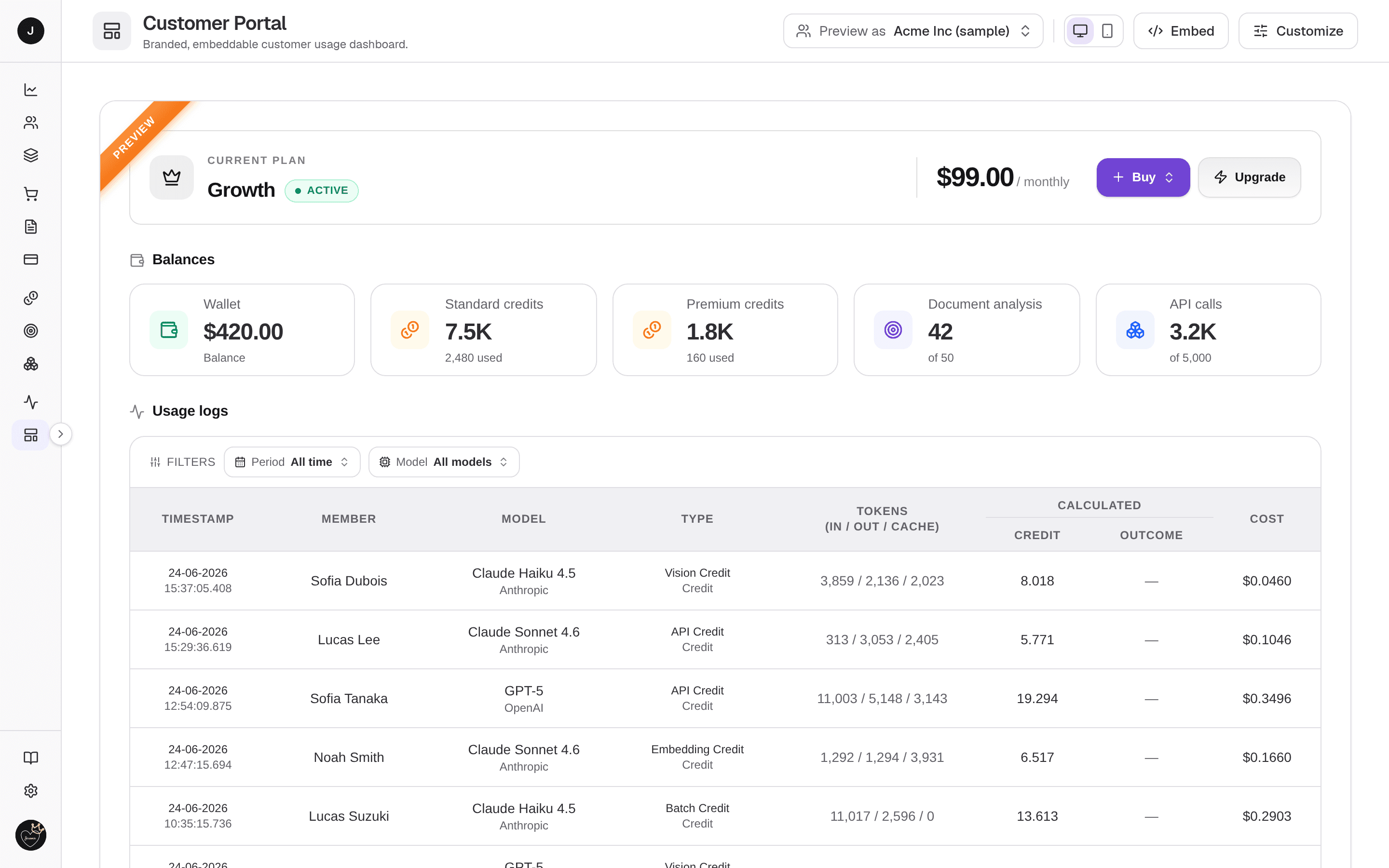
The Customer Portal is the read-only, embeddable page your Customers open to see their own Plan, balances, and recent usage. The Customer Portal builder is where you design the branded, embeddable usage dashboard your Customers see. It pairs a customize panel with a live preview: as you set the theme, choose which sections show, and order the activity columns, the preview renders the real portal so you can see exactly what a Customer will. Once saved, the portal is served at a public URL and embedded per-customer with a short-lived token.
What you can do here
- Preview the portal as it renders for a real Customer, or against a built-in Acme Inc sample.
- Switch the preview between Desktop and Mobile widths.
- Customize the portal's theme, features, and usage-log columns.
- Save changes to publish your edits, or Discard to revert to the last saved version.
- Open Embed for a step-by-step guide to dropping the portal into your own site.
On this page
The screen is a full-height builder: a toolbar across the top and a live preview filling the rest. The preview always reflects the last saved config — staged edits in the Customize dialog only appear once you click Save changes.
Toolbar
- Preview as — pick a Customer to fill the preview with their real Plan, balances, and usage. The default shows the Acme Inc (sample) stats over your org-level usage logs.
- Desktop / Mobile — toggle the preview width to check both layouts.
- Embed — open the integration guide (see below).
- Customize — open the editor dialog.
Live preview
The preview is the actual portal surface — a branded header, Plan card, stat cards, and an activity table — rendered from your saved config and the selected Customer's data. Picking a different Customer reloads their slice in place.
Who can edit
Only an owner or admin can change and save the portal. Other roles see the builder in read-only mode.
Customizing the portal
The Customize dialog has three tabs. Nothing takes effect on the portal until you click Save changes.
Theme
- Mode — Light or Dark, which picks a starting palette.
- Colours — fine-tune Primary, Secondary, Background, Text, and Accent as hex values.
- Font — the family used across the portal: Sans, Serif, Mono, Rounded, Grotesk, Geometric, Slab, or Humanist (all system font stacks).
Features
Toggle the sections and behaviours the portal shows:
- Plan card — the Customer's current Plan, price, and Buy / Upgrade actions.
- Stats — headline cards: cost, requests, tokens, success rate.
- Activity logs — a table of the Customer's most recent usage.
- Credit rule details — reveal the Credit rules applied to a request on hover in the activity table (requires Activity logs).
- Credit decimals — show Credit balances with decimals, or round to whole numbers.
- Buy & Upgrade buttons — show the action buttons in the top bar.
- "Powered by Clocknext" footer — show or hide the small Clocknext credit.
- Group thousands — show large numbers with separators (1,234 vs 1234).
Usage logs
Choose which columns the portal's activity table shows and in what order. Available columns are Timestamp, Member, Model, Type, Tokens (in / out / cache), Credit, Outcome, and Cost. Drag a row by its grip to reorder, and toggle each on or off — at least one column stays visible.
Tax at checkout
When a Customer buys or upgrades in the portal, the checkout's order summary shows a Subtotal, one row per tax for their billing country and the Total due before they pay — the same taxes as their Invoices (see Settings → Taxes). The tax is worked out once, at checkout, and the Customer is charged exactly that total.
What they receive is the amount before tax. For example, a $100 Wallet top-up with an 18% exclusive GST charges the card $118.00 and adds $100.00 to the Wallet. The same goes for Credit, Outcome and Unit purchases and Plan upgrades.
Embedding the portal
The Embed button opens a short, step-by-step guide. The portal is always published, so you don't publish it separately — you point an iframe at it with a short-lived token minted on your server.
- Get your API key & organization id — create an API key on the API Keys page and copy your organization id. The key mints tokens and must stay on your server only.
- Mint a token & embed the iframe — on your server, mint a token for the logged-in Customer (using the same customer id you use for usage reporting) and render the iframe with it. Tokens last one hour. The guide gives copy-ready snippets for Node, PHP, and Python.
Keep the key server-side
Your cnk_… API key has org-wide write access. Mint portal tokens on your
backend and pass only the short-lived token to the browser — never ship the
key itself to a client.
Related
- Portal token — the API that mints the short-lived embed token.
- Customer detail — the internal view of the same Plan, balances, and usage a Customer sees in their portal.
- Portal token API — mint an embed token over the API.