Documentation
API Keys
Create, regenerate, and delete the single secret key that authenticates the Clocknext API and SDK for your workspace.
API Keys manages the one secret key that lets your backend authenticate against
the Clocknext API and SDK. There's a single key per Organisation, and the full
value is shown only once — at creation — so you copy it then and store it
safely. The page walks through the key's whole lifecycle: an empty state to
generate it, a one-time reveal, and a managed card for the existing key.
What you can do here
- Generate the Organisation's API key with a chosen expiry.
- Copy the freshly minted key from its one-time reveal (with a ready-to-run curl snippet).
- Regenerate the key, optionally with a new expiry.
- Delete the key.
Owner or admin only
Creating, regenerating, and deleting keys are available to owners and admins. Members see the key's status but can't change it.
Keep it secret
The key carries org-wide write access. Use it only from a server or backend — never ship it to a browser. Only its SHA-256 digest is stored, so Clocknext cannot show it to you again after creation.
On this page
The page shows one of three states.
Empty state
Shown when the workspace has no key. Pick an Expires in value — 7, 30, 60, 90, 180, 365 days, or Never — and press Generate key.
One-time reveal
Right after creating or regenerating, the full key is shown once. It offers:
- A reveal/hide toggle and a Copy button.
- A Try it curl snippet using the new key.
- The key's expiry date.
Press I've saved it to dismiss the reveal — the full key is never shown again.
Managed card
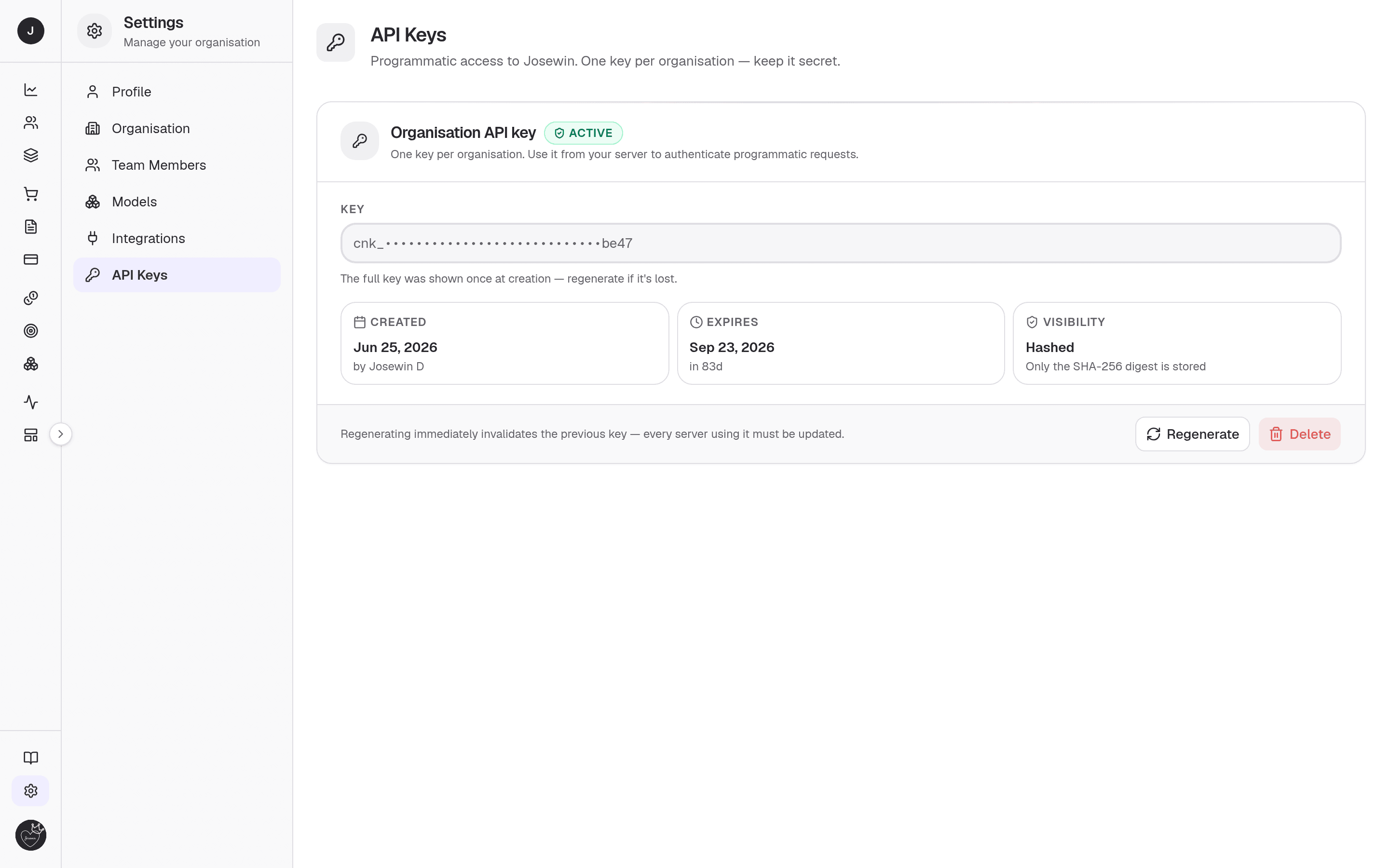
For an existing key, showing:
- The masked key (prefix + last four).
- A status badge — Active, Expiring in Xd, Expired, or Never expires.
- Meta tiles: Created (with who created it), Expires (with days remaining), and Visibility: Hashed (only the SHA-256 digest is stored).
- Regenerate and Delete actions.
Creating an API key
- From the empty state, choose an expiry and press Generate key.
- On the one-time reveal, copy the key (or the curl snippet) and store it in a secret manager.
- Press I've saved it. The managed card now shows the masked key.
Regenerating and deleting
- Regenerate — confirm, and optionally pick a new expiry. The previous key stops working the moment the new one is minted, so every server using it must be updated. A fresh one-time reveal follows.
- Delete — confirm to remove the key; it immediately stops working. Use the Generate key flow to create a new one later.
Related
- API reference — the full REST API your
cnk_key authenticates. - Integrations — third-party provider credentials, managed separately from this key.