Documentation
Customers
Browse every Customer you bill for usage, with revenue, cost and profit at a glance.
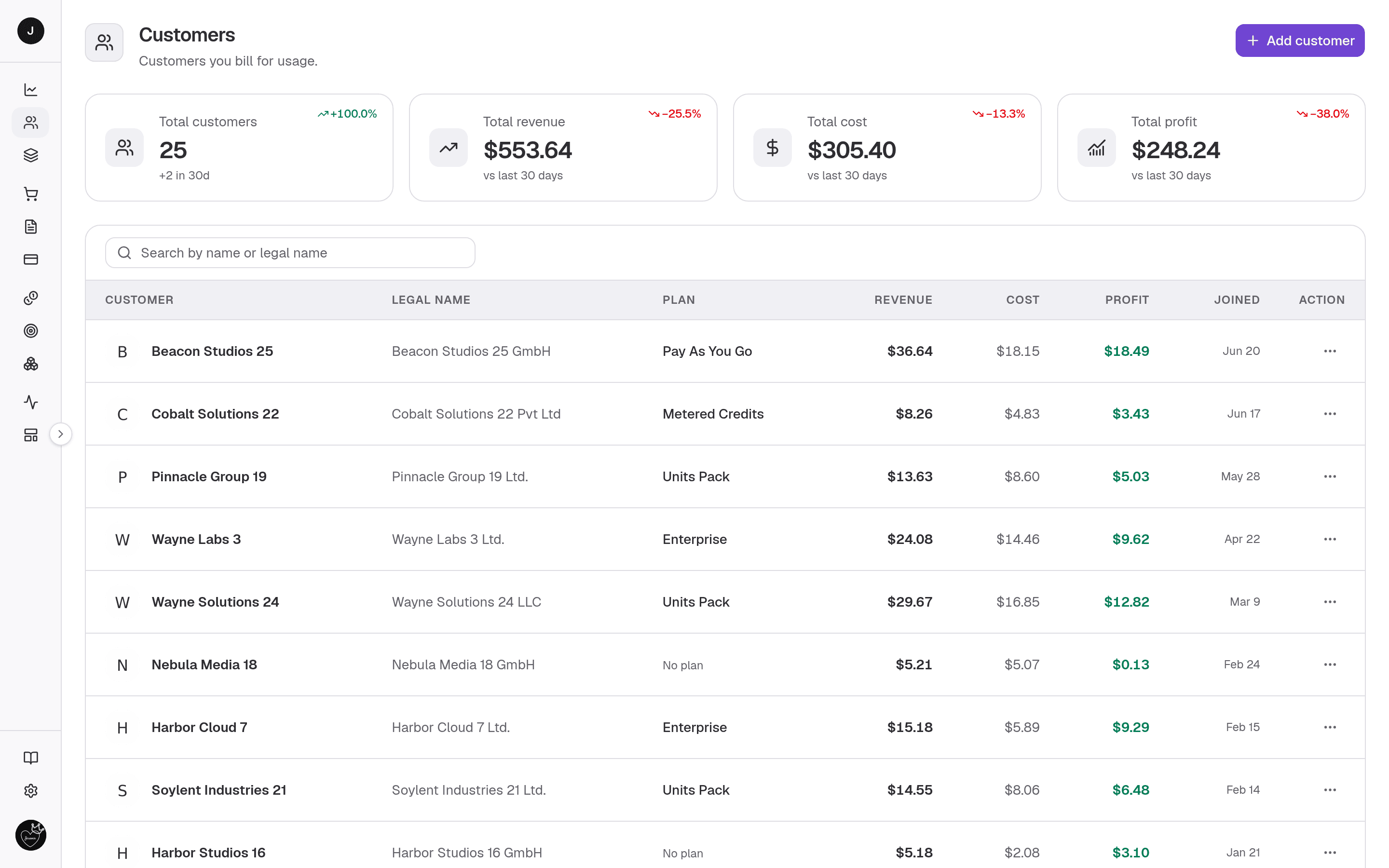
A Customer is a company you bill for usage. The Customers page lists every company you track and bill in the active workspace, most-recent first. Workspace-wide totals sit up top; a searchable, paginated table underneath gives you each Customer's Plan, billed revenue, model cost and profit — and a way in to the full Customer detail.
What you can do here
- See workspace-wide totals — Customers, revenue, cost and profit — each with a rolling 30-day trend.
- Search Customers by name or legal name and page through the results.
- Open any Customer to see its full detail (click a row, or the Customer name).
- Add a new Customer (owner or admin only).
- Edit or delete a Customer from its row menu (owner or admin only).
On this page
Summary cards
Four cards sit above the table. The headline figure is the all-time total for the workspace; the hint underneath tracks movement over the last 30 days, so the numbers stay put as you search and page around.
| Card | What it shows |
|---|---|
| Total customers | Count of Customers in the workspace, with new additions in the last 30 days. |
| Total revenue | All-time revenue billed across every Customer, not counting tax. |
| Total cost | Underlying model cost you've incurred across every Customer. |
| Total profit | Total revenue minus total cost. |
Table columns
Each row is a Customer. Clicking anywhere on the row (or the Customer name) opens its detail page.
| Column | What it shows |
|---|---|
| Customer | Company logo (or an initial fallback) and name. |
| Legal name | The registered legal entity, or — when it isn't set. |
| Plan | The Customer's active Plan, linked to that Plan; No plan when none is attached. |
| Revenue | Total billed to the Customer, not counting tax. |
| Cost | Underlying model cost for that Customer. |
| Profit | Revenue minus cost — green when positive, red when negative. |
| Joined | The date the Customer was added. |
| Action | Edit or delete the Customer (shown to owners and admins only). |
Search and paging
- A search box filters by name or legal name and shows the matched count against the total.
- Page controls and a page-size selector sit under the table.
When the workspace has no Customers yet, the table is replaced by an empty state prompting an owner or admin to add the first one. A search that matches nothing still shows the table with a "no customers match" message.
Adding a Customer
Owners and admins get an Add customer button in the header (and in the empty state). It opens a single scrollable dialog — no step wizard — with these fields:
| Group | Fields |
|---|---|
| Identity | Customer name (required), Email (required), Phone (required), Website (required), External ID (optional), Description (optional) |
| Business | Legal name (required), Tax / VAT ID (optional) |
| Billing address | Street address, City, State, Country, Pincode — all required (Invoices need them) |
| Display currency | Currency (required) — prices and totals on the Customer's page are shown in this currency, and can be changed later |
The Country also decides which taxes the Customer is charged: every active tax you've added for that country in Settings → Taxes is applied to their Invoices and portal purchases. A Customer with no country is charged no tax.
Logo is automatic
You don't upload a logo when creating a Customer — a brand mark is derived from the website server-side. You can replace it later from the Customer's header.
The same dialog is reused in edit mode (from the row menu): it pre-fills the Customer's current profile and sends only the fields you actually change. Deleting a Customer removes the Customer, every Member scoped to it, and all of its usage history — cost and revenue totals update immediately.
External ID — your own id for the Customer
External ID is the id your own product already uses for this Customer (a
user id, an account number). It is optional: 1–32 letters, numbers or -,
matched exactly (Acme-42 and acme-42 differ), and no two active Customers
can share one. Once it is set, the Customer's detail page shows it under the
customer id. Signals and new Purchases can then name the Customer by
externalId instead of customerId, and the Customer can be fetched or updated
by it — so your backend rarely needs our id. If a request sends both,
customerId wins.
curl -X POST https://payments.clocknext.com/api/v1/customers \
  -H "Authorization: Bearer $CLOCKNEXT_API_KEY" \
  -H "Content-Type: application/json" \
  -d '{ "name": "Acme Inc", "email": "ops@acme.com", "externalId": "acme-42" }'

# Later, fetch it by your id
curl https://payments.clocknext.com/api/v1/customers/ext/acme-42 \
  -H "Authorization: Bearer $CLOCKNEXT_API_KEY"
import { ClockNext } from "@clocknext/sdk";
const cnk = new ClockNext({ apiKey: process.env.CLOCKNEXT_API_KEY! });
await cnk.customers.create({ name: "Acme Inc", email: "ops@acme.com", externalId: "acme-42" });
// Later, fetch it by your id
const customer = await cnk.customers.getByExternalId("acme-42");See Your own customer ids for exactly which requests accept it.
Related
- Customer detail — the per-customer page a row opens.
- API: List Customers · Create a Customer · Get a Customer
- API: Customer balances · Customer Plan
- Customers API — create and manage Customers over the API.
- Your own customer ids — name a Customer by its
externalIdinstead of our id.