Documentation
Profile settings
Manage your personal account — name, phone, email addresses, password, connected logins, and account deletion.
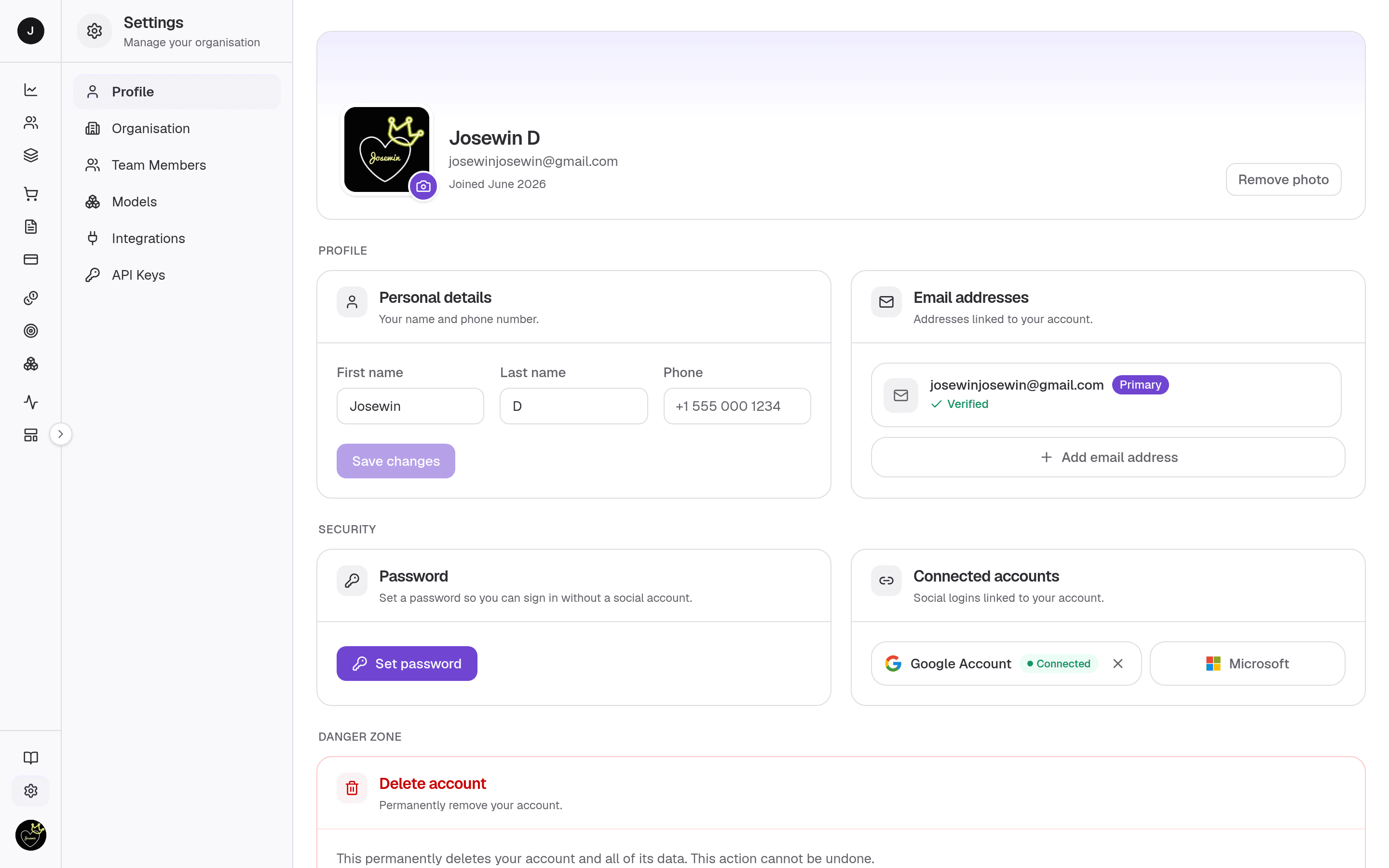
Profile settings is your personal account page — everything here is about you,
not the Organisation. It's a custom account UI built on top of your login
provider, so it matches the app theme while still handling sensitive actions
safely. An identity hero sits at the top, followed by three grouped sections:
Profile, Security, and a Danger zone. Sensitive changes (name, email, password,
photo, deletion) may prompt you to re-verify it's really you before they apply.
What you can do here
- Upload or remove your profile photo (image files up to 5MB).
- Edit your first name, last name, and phone number.
- Add, verify, remove, and set your primary email address.
- Set or change your password (which signs you out of other devices).
- Connect or disconnect social logins (Google, Microsoft).
- Permanently delete your account.
On this page
Identity hero
The banner at the top shows your avatar, full name, primary email, and the month you joined. Use the camera button on the avatar to pick a new photo; a Remove photo button appears once you have a custom one. Photos must be image files and 5MB or smaller.
Profile group
- Personal details — First name and Last name (stored with your login identity) plus Phone number (stored on your Clocknext user record). Edit any field and press Save changes; the button stays disabled until something actually changes.
- Email addresses — a list of every email linked to your account, ordered primary-first. Each row shows a Primary badge and a Verified or Unverified status. Unverified rows offer Verify; verified non-primary rows offer Make primary; any non-primary address can be removed.
Security group
- Password — Set password if you signed up with a social login only, or Change password if you already have one. Passwords must be at least 8 characters, and changing it signs out your other devices.
- Connected accounts — social logins linked to your account. Connected providers show a green Connected pill with a disconnect control; available providers show a Connect button that hands off to that provider's sign-in.
Danger zone
- Delete account — permanently removes your account and all of its data. You must confirm, and the action cannot be undone.
Adding and verifying an email
- Press Add email address to open the dialog.
- Enter the address; Clocknext emails a 6-digit code to confirm it.
- Enter the code (or press Resend code if it doesn't arrive) and confirm.
- The new address appears in the list as Verified. To make it your login address, use Make primary on its row.
Changing your password
Open Change password, enter your current password, then the new one twice. Because this is a sensitive action, your other sessions are signed out when it saves. If you don't have a password yet (social login only), the card shows Set password instead and skips the current-password field.
Related
- Organisation settings — the workspace details, separate from your personal profile.
- Team Members — who else can access the workspace, and their roles.